Stillora: one MP4 out of your photos, clips and audio
A utility belt rather than an editor: ten separate tools, eight framing presets, and a file that never leaves the phone.
Short answer
Stillora combines images, video clips and audio into a single MP4, picking the frame size from a preset instead of a timeline. It also carries eight smaller jobs — watermarking, silence removal, speed, compression, format conversion and a two-way PDF converter — and both store listings state that files are processed on the device.
On this page
Three photos, a voice recording and a caption. The platform wants an MP4. A phone offers a slideshow locked inside the Photos app, an audio file it will not merge, and a video editor whose timeline assumes you already know what a keyframe does.
Stillora is an iPhone and Android app that assembles images, video clips and audio into one MP4, choosing the frame size from a preset rather than drawing it by hand. It is not a timeline editor, and its listing does not pretend to be one. That single decision explains most of what the app is good at, and everything it refuses to do.
What is actually inside the app
The first App Store screenshot opens on a sidebar, and that sidebar is the honest feature list. Ten entries sit in three groups.
Create covers four ways to start: Create, which merges images, clips and audio into one file; Text, which puts words over video; Loop images, which turns a still into a looping clip; and HTML, which renders a page to MP4.
Video tools are five separate jobs rather than stages of one pipeline — Watermark, Remove Silence, Speed, Compress and Convert. Document tools holds a single entry, a PDF converter that runs both directions.
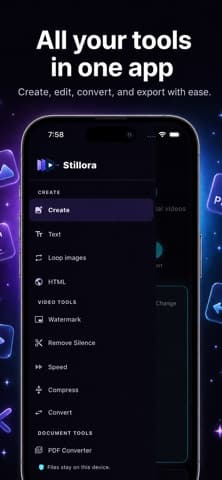
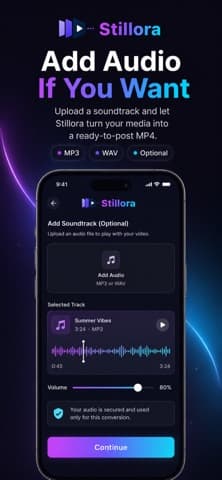
Each entry does one job and hands back a file. That is a utility belt, and it is a reasonable shape for work you do occasionally rather than daily.
Which preset should you choose?
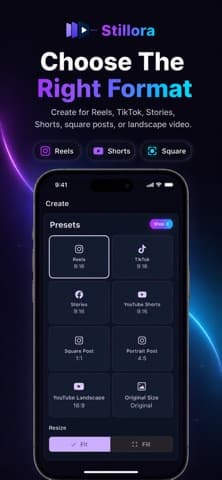
The framing screen is where most of the thinking happens, because it is the decision that cannot be undone later without cropping. Eight tiles are visible in the listing.
| Preset | Ratio | Where it fits |
|---|---|---|
| Reels, TikTok, Stories, Shorts | 9:16 | Full-screen vertical feeds |
| Portrait Post | 4:5 | The tallest a feed post goes before it crops |
| Square Post | 1:1 | Grids, and older feeds |
| YouTube Landscape | 16:9 | Players that letterbox anything taller |
| Original Size | Whatever you imported | Archival copies, and re-edits |
Under the grid sit two framing modes, Fit and Fill. Fit keeps the whole image and pads the gap. Fill crops to the edges and loses whatever falls outside. The listing offers a custom or blurred background behind a fitted image, which is the usual way to make a horizontal photo survive a vertical frame.
Pick the ratio for the destination, not for the source. A 16:9 clip forced into 9:16 loses two thirds of its width, and no export setting recovers it.
Where do your files go?
Both listings answer this directly, and the answer is the same on each.
Files stay on this device.
The Android listing goes slightly further, saying the editor workflow does not upload the media you select. The soundtrack screen carries its own line, telling you the audio is used only for that conversion.
Treat these as claims you can check rather than facts you have been given. The place to check them is the privacy policy and the store's own privacy label, which Apple requires developers to declare through privacy manifest files. On-device processing also has a plain practical consequence: a long export uses your battery and your thermal headroom instead of somebody's server, which is a trade rather than a free win. Our file tools coverage goes through the same question for browser-based utilities.
What it will not do
The honest limits matter more than the feature list, because they are what sends you to a different app halfway through a job.
- There is no timeline. You cannot trim clip three to 1.4 seconds and slide it left. Order and framing are what you control.
- The tools do not chain. Compress and Watermark are separate jobs, so a watermarked and compressed file is two passes and two exports.
- The two listings are not identical. The iOS description names HTML-to-video and the PDF converter; the Android one describes a narrower creation flow.
- The ratings tell you nothing yet. The App Store shows 5 stars from a single rating, which is a sample of one.
Version 1.1.9 is the current release. A video tool at this stage is worth judging on whether the one job you need is done cleanly, not on the length of the sidebar.
The two store listings describe different apps
This is worth its own heading, because it is the kind of thing that wastes an afternoon. The iOS and Android descriptions do not cover the same feature set, and neither says so.
The iOS listing names four creation modes, including HTML-to-video and a two-way PDF converter, plus the five video tools. The Android listing describes importing images, clips and audio, choosing a social preset, adding voice narration and background audio, previewing, and keeping finished exports in a local gallery. Voice narration appears only on the Android side. HTML rendering and the PDF converter appear only on the iOS side.
There are two plausible explanations, and the listing does not settle which is true: the platforms genuinely ship different builds, or one description is simply older. Either way, the practical rule is to check the platform you actually use before promising a colleague on the other one that the app does a particular job.
Is it the right tool for a podcast clip?
For an audiogram — one image, one audio track, a vertical frame — this is close to the shortest path on a phone. Add the image, add the MP3 or WAV, choose Reels or Shorts, export. The waveform and volume control are on the same screen as the file picker.
For anything where the cut matters, it is the wrong shape. Interviews, multi-camera edits and anything needing captions timed to speech want a timeline, and a tool without one will cost you more time than it saves. That distinction is the same one we draw for creator tools generally: match the tool to the edit, not to the format.
If you are unsure which container and codec to target before exporting, the MDN video codec guide is the reference worth reading once. MP4 with H.264 remains the safest thing to hand to a platform that has not told you what it wants.
Three habits that make a preset-based tool work
None of these are in the manual, and all three save a re-export.
- Crop before you import, not after. The app frames what you give it. A photo cropped to 9:16 in Photos first will always beat Fill guessing which third of it mattered.
- Keep the original. Export to Original Size once as your master, then re-export to each platform ratio from that. Re-cropping a cropped file compounds the loss.
- Name the export immediately. A folder of files called video-1 through video-9 is the same retrieval problem a cleaner solves for disks, and we have written about naming schemes that survive.
The last one sounds trivial until the third round of revisions, when the difference between the approved cut and the one with the wrong music is a filename you did not write down.
Frequently asked questions
- Is Stillora free?
- Both store listings show it as a free download. The App Store page lists version 1.1.9 with a price of Free, and the Google Play listing is free as well. Neither listing describes a paid tier, so check the app for current in-app purchases before relying on that.
- Does it need an internet connection?
- The listings say files stay on the device and are processed there, which implies the conversion itself does not need a connection. They do not promise the whole app works offline, so treat that as untested rather than confirmed.
- What does Remove Silence actually do?
- It cuts silent gaps out of a clip automatically. The listing does not say what threshold counts as silence or whether it is adjustable, so on a quiet recording with room tone the result is worth checking before you export.
- Can it replace a proper video editor?
- No, and it is not trying to. There is no timeline, so trimming to a precise frame and arranging overlapping clips are not possible. It is built for assembly and one-off conversions, not for editing.
Sources
- Stillora: MP4 Video Maker — App Store
- Stillora on Google Play — Google Play
- Web video codec guide — MDN Web Docs
Published by
Skrill
Discover useful apps, software, AI tools, digital products, reviews, comparisons, alternatives, and practical recommendations.
About the publication