CleanX shows a Mac what it can reclaim before deleting it
Most cleaners show you a number and a button. This one shows the file list first, which is the only version of the feature that is safe.
Short answer
CleanX is a macOS utility that scans cache, log, temporary, trash and old-file locations, groups what it finds by type with a size against each, and deletes only the items you tick. It also keeps a menu-bar readout of CPU, memory, swap and disk use.
On this page
The dangerous part of a disk cleaner is the confidence. A tool announces that it has found 4 gigabytes of junk, offers one button, and asks you to believe that nothing in the pile mattered. When it is wrong, you find out weeks later, and there is no list of what went.
CleanX is a macOS utility built the other way round. It scans, then shows the file list grouped by type with a size against every row, and deletes only what you have ticked. The review step is not a confirmation dialog bolted on at the end — it is the main window.
What a scan actually returns
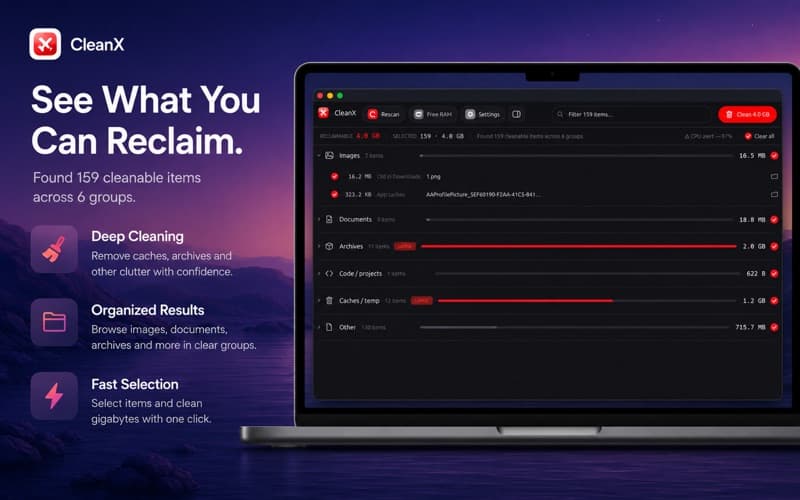
The listing screenshots show a completed scan, and the numbers in them are worth reading closely because they demonstrate the shape of the answer rather than just the size of it.
The header reads 159 cleanable items across 6 groups, with a Clean 4.0 GB button top right. The groups below it break down like this.
| Group | Items | Size |
|---|---|---|
| Images | 2 | 16.5 MB |
| Documents | 3 | 18.8 MB |
| Archives | 11 | 2.0 GB |
| Code / projects | 1 | 622 B |
| Caches / temp | 12 | 1.2 GB |
| Other | 130 | 715.7 MB |
Two things fall out of that table immediately. The 4 GB total is almost entirely two rows — archives and caches — and the 130 items in "Other" contribute less than a fifth of it. That is the normal shape of a full disk, and it is an argument for reviewing by size rather than by count.
What can a cleaner on macOS actually see?
Less than people expect, and this is the single most useful thing to understand before installing any of them.
A Mac app distributed through the App Store runs inside App Sandbox, which confines it to its own container plus whatever the user explicitly grants. It cannot roam the whole filesystem because it feels like it. The listing acknowledges this in its own words, saying the app shows the files it can access.
So the honest expectation is caches, logs, temporary files, trash and large old files in places you have granted. Not another application's private container, and not system files that macOS manages itself. A cleaner claiming to reach everything is either asking for sweeping permissions or overstating.
A storage tool that cannot show you the path of a file it wants to delete has not earned the click.
Does the system monitor earn its place?
It is a second product bolted to the first, and whether that is welcome depends on how you feel about menu-bar clutter.
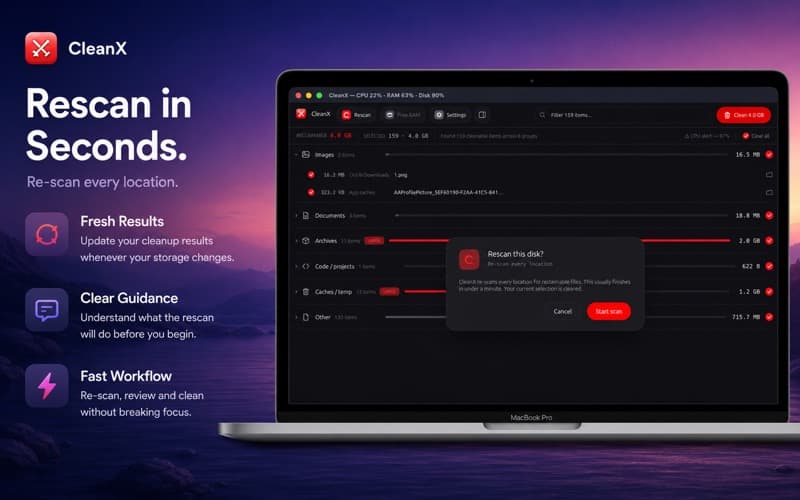
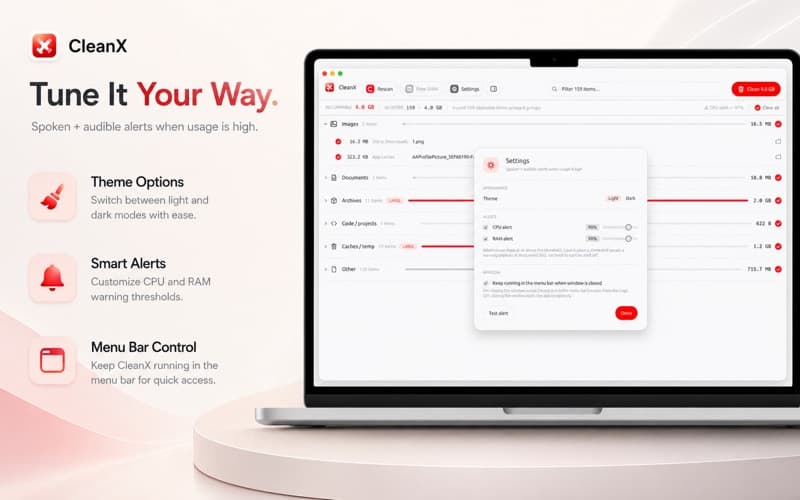
The menu-bar readout shows CPU, RAM and disk percentages — 22, 63 and 90 in the screenshot — and the settings pane adds alert thresholds for CPU and RAM, both defaulting to 90 per cent, with an option to keep the app running when the window is closed. There is a test-alert button, which is a small courtesy that more apps should copy.
- Useful if you want a persistent readout without opening Activity Monitor.
- Redundant if you already run a dedicated monitor, since two menu-bar meters is one too many.
- Irrelevant to the cleaning job, which works the same whether the monitor is on or off.
When a cleaner is the wrong answer
Freeing 4 GB on a disk that is 90 per cent full buys you days, not a solution. If the readout says 90 per cent and the scan finds 4 GB on a 500 GB disk, the problem is the other 446 GB, and no cleaner addresses that. Photo libraries, virtual machines, Xcode simulators and downloaded video are where the space actually went.
Caches are also not permanently reclaimable. An application rebuilds its cache the next time it runs, which is the point of a cache — you are borrowing space, and the first launch afterwards is slower. Deleting them weekly is a habit that costs more than it returns. Our free utilities coverage keeps coming back to that distinction, and the file tools section deals with the archives that are usually the real culprit.
Version 1.0.3 is current, and the App Store lists no ratings yet. Judge it on whether the file list is legible and the selection is honest, because those are the parts a cleaner either gets right or should not be trusted with.
How to read a scan without deleting something you need
The grouping is the safety feature, so use it in a deliberate order rather than working down the list.
Start with Archives, because in the screenshot it is half the total on its own. A 2 GB archive group is usually old downloads — installers, exports, zipped folders someone sent you in 2024. These are genuinely safe to remove and genuinely large, which is the rare combination.
Caches and temp files come second. They are reclaimable but they come back, so take them when you need the space rather than as maintenance. Then Documents, Images and Code, where you should read filenames rather than trusting the group name — the screenshot shows an item called "AAProfilePicture" sitting in the images group, and only you know whether that matters.
Leave "Other" until last. It held 130 of the 159 items and under a fifth of the bytes, which is the worst ratio of risk to reward in the window.
Sort by size, not by count. The row with 130 items is rarely the row worth clicking.
The rescan dialog is a small detail that reflects well on the app: it warns that re-scanning clears your current selection. That is the sort of thing you find out the hard way in tools that do not say it.
When the number does not go down
A cleaner cannot fix a disk that is full of things you chose to keep, and the 90 per cent disk reading in the screenshot is the case in point.
Four categories account for most large disks, and none of them are cache. Photo and video libraries, which grow silently. Virtual machines and container images, which are enormous and invisible in Finder. Developer tooling — simulators, build folders, dependency caches — which reinstall themselves cheerfully. And downloaded media that a streaming app is holding for offline use.
The realistic sequence is to run a cleaner once to take the easy 4 GB, then go after the actual consumers with a disk-usage map that shows folder sizes. Our guides section covers that process, and it is the one that changes the number for more than a fortnight.
There is also a floor you cannot cross. macOS reserves space for snapshots and swap, and a disk reported as 90 per cent full is not 10 per cent available in any useful sense — writing large files slows down well before the bar fills. If a 500 GB disk is permanently within a few gigabytes of full, the answer is an external drive or a smaller photo library, not a weekly scan. A cleaner is a tool for reclaiming waste, and waste is a fixed and fairly small share of most disks.
Frequently asked questions
- Does CleanX delete anything automatically?
- No. The scan produces a checklist grouped by type, and cleanup runs only on the items you select, after a confirmation. The listing describes this as user-controlled cleanup with item-by-item selection.
- Will it free space that macOS cannot free itself?
- Sometimes, but less than a full-disk warning implies. macOS already manages purgeable space, and a sandboxed app only reaches locations it has been granted. Large personal files usually account for far more than caches do.
- Is emptying caches a good routine?
- Not as a routine. A cache is space an app borrowed to be faster, and clearing it forces a rebuild and a slower next launch. Clear caches when you actually need the space, not on a schedule.
- Is CleanX available for iPhone?
- No. It is a macOS application, with a menu-bar presence and a system monitor for CPU, memory, swap and disk. There is no iOS release in the listing.
Sources
- CleanX: Storage Cleaner — App Store
- App Sandbox — Apple Developer Documentation
- Protect data on your Mac with FileVault — Apple Support
Published by
Skrill
Discover useful apps, software, AI tools, digital products, reviews, comparisons, alternatives, and practical recommendations.
About the publication